Get started

Your first profile,
step by step

What to have ready, why games should see virtual joysticks instead of your real sticks, and how the new profile wizard maps every axis, button and hat in one go.

Before you start

What you need

  • Windows 10 or 11: the installer. It adds the signed vJoy and HidHide drivers when they are missing. The portable zip installs no drivers: run the installer once, or install vJoy 2.1.9.1 and HidHide yourself.
  • Linux: the AppImage. A downloaded file does not start yet: right-click it, open Properties and turn on Executable as Program (or run chmod +x on it). Then double-click it and click Install on the System Gobloon banner; the system asks for your password once. No driver is needed. After the first start Joystick Gobloon is in the application menu too.
  • Your controllers plugged in. The wizard lists only the controllers attached right now.
  • A Joystick Gremlin profile? You can skip the wizard and import it instead; see Other ways to start.

Why virtual joysticks

Joystick Gobloon reads your real sticks and writes to virtual joysticks, and the game binds those. Everything the profile does happens in between: response curves, modes, modifiers, macros, a long press that sends a different button than a short one.

  • Change what a button does in the profile, and the game's bindings stay as they are.
  • A replaced or repaired stick needs no new bindings in the game: map it to the same virtual joystick.
  • Several sticks can feed one virtual joystick, or one stick can be split over several.

The simplest start is one virtual joystick per real stick, which is exactly what the wizard sets up. How it works shows the whole chain.

Why hide the real sticks

A game sees every controller it can find. With the real stick and its virtual joystick both visible, one movement arrives twice. Worse, when you bind controls the game may take the real stick instead of the virtual one, and then your curves, modes and modifiers do nothing for that control.

Hiding fixes that: games no longer see the real sticks, while Joystick Gobloon still reads them. On Windows the HidHide driver hides them for every program; on Linux Joystick Gobloon reads them exclusively while it runs. Hiding devices explains both, and which programs can still see a hidden stick.
Virtual joysticks first

Create them

The wizard maps each stick onto a virtual joystick that already exists, so create those first, on the Virtual joysticks page in the left rail.

  1. Add one device per stick with the + next to the device tabs.
  2. Give each one at least as many axes, buttons and hats as its stick has. Then the wizard can map every input; what does not fit stays unmapped.
  3. Press Create. On Windows, vJoy asks for administrator rights once per change; on Linux nothing is asked.

A vJoy device has up to 8 axes, 128 buttons and 4 hats; on Linux it is 8 axes, 95 buttons and 4 hats. Every setting, the tester and Linux gamepads are on Virtual joysticks.

The new profile wizard

Open it

Click the wand, the first button in the top toolbar. If the open profile has unsaved changes, Joystick Gobloon asks to save them first.

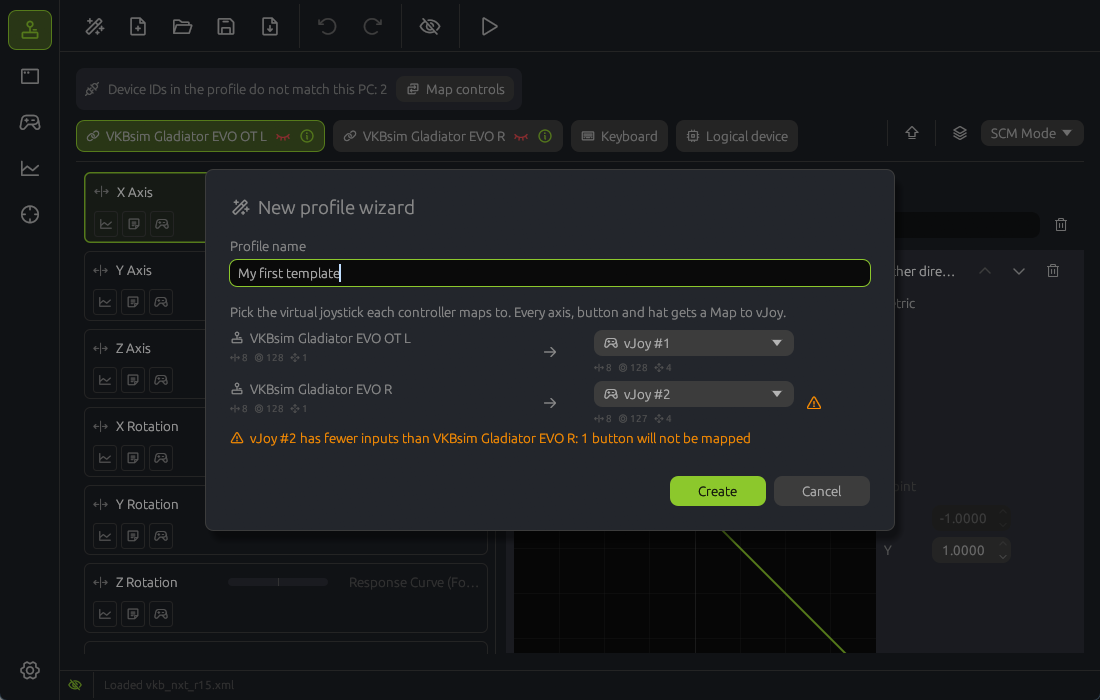
New profile wizard: the profile name, then each attached stick with its axis, button and hat counts and the virtual joystick it maps to, a warning that one virtual joystick has a button less than its stick, and the Create and Cancel buttons

Fill it in

  1. Name the profile, for example My flight setup. The field has the focus when the wizard opens.
  2. Check each controller row. Every attached controller has a row with its name and the number of axes, buttons and hats it has. On the right is the virtual joystick it maps to: the wizard already picked the next free one for each controller, in order, so the first stick gets the first virtual joystick, the second stick the second, and so on.
  3. Change a pick from the list if needed. It shows each virtual joystick with its axes, buttons and hats. A virtual joystick takes only one controller: those another controller already uses are grayed out, because two controllers would fight over the same outputs.
  4. Leave a controller out with Not mapped, for example pedals or a throttle you want to set up by hand later.
  5. Read the warnings. A warning sign shows when a virtual joystick has fewer inputs than its controller, and a line below the list says what will not be mapped, such as 1 button. Make that virtual joystick bigger on the Virtual joysticks page, or accept it and map those inputs yourself.
  6. Press Create. It is available once the profile has a name and at least one controller is mapped.

What it makes

A new profile with one mode, Default, in which every input of every mapped controller has a Map to virtual stick onto its virtual joystick:

  • Axes go to the same axis where the virtual joystick has it: X to X, Slider to Slider. The other axes take the virtual joystick's remaining axes in order.
  • Buttons and hats keep their numbers: button 5 to button 5, hat 1 to hat 1.
  • What does not fit stays unbound, so nothing is lost: add it later by hand.

The status bar says Profile created. The profile is not saved yet: press Save in the toolbar and pick a file.

Finish the setup

Make it yours

The wizard gives every input a plain one to one mapping. Shape it on the Devices and bindings page: pick a stick's tab, select an input, and its actions show on the right.

  • Put a Response curve before Map to virtual stick on an axis that feels too twitchy.
  • Move an output with the lists of Map to virtual stick, or the grid button next to them: outputs other inputs already use are marked, so you can see what is free.
  • Give buttons more jobs with Tempo, Double tap, modes and modifiers.
  • Let an axis press a button near its end, or a hat press one for a group of directions: Axis or hat as a button.
  • Hold a button and say a phrase: Voice commands press buttons for you.

Learning explains every action with its editor.

Hide, activate, bind

  1. Hide the real sticks: the eye button in the toolbar opens Device hiding. On Windows, reconnect each stick after hiding it. Details in Hiding devices.
  2. Activate the profile with the play button. The virtual joysticks now follow your sticks.
  3. Bind the controls in the game by moving your real sticks. The game sees only the virtual joysticks, so every binding lands on one of them.
  4. Save the profile. Next time: start Joystick Gobloon, press play, start the game. In Settings it can start with the system and activate the profile on its own.

Unsaved changes are never lost: a moment after each edit Joystick Gobloon keeps a copy of them, and if the program or the PC stops before you save, the next start opens the profile with your changes, still unsaved. A new profile is called profile_1, profile_2 and so on, marked not saved in the title bar, until you save it under a name of your own. Saving, or choosing Don't save when asked, removes the copy.

More

Other ways to start

  • Empty profile. The page button next to the wand starts a profile with nothing mapped; add actions input by input.
  • Import from Joystick Gremlin. The folder button opens a profile from Joystick Gremlin R14 or newer and it runs as it is. Anything not supported yet is kept unchanged in the file. Profiles from R13 and older cannot be imported; the wizard builds a new one quickly.
  • A profile from another PC. The same stick has a different ID on every PC. A banner on the Devices page offers Map controls, which matches the profile's devices to your sticks; Auto does it by name.
  • Missing virtual joysticks. When a profile uses virtual devices this system lacks or has set up smaller, a banner offers Set up: it creates what is missing and never removes anything.

When the wizard is stuck

A controller is not in the list
Plug it in; the list follows what is attached. On Linux, install System Gobloon from the banner on the Devices page first (or click Grant access there). A stick you already hid is still listed as long as See hidden devices is on in Settings.
It says there are no virtual joysticks yet
Create them on the Virtual joysticks page first (Create them), then open the wizard again.
Create stays gray
Type a profile name and map at least one controller to a virtual joystick.
A virtual joystick is grayed out in the list
Another controller already maps to it. Pick a different one, or set the other controller to Not mapped.
Some inputs will not be mapped
The virtual joystick is smaller than the stick. Add axes, buttons or hats to it on the Virtual joysticks page, then open the wizard again.